
11.1 — Set up the Context7 MCP server for the Cloud Agent
The MCP you set up in Part 3 was for VS Code. For the Cloud Agent to use MCP, you need a separate repository-level setting (shared by the Cloud Agent and Copilot Code Review).
- On github.com, open your repository and click the Settings tab.
- In the sidebar, go to Code & automation → Copilot → MCP servers.
- Paste the following JSON into the MCP configuration field and click Save MCP configuration.
{
  "mcpServers": {
    "context7": {
      "type": "http",
      "url": "https://mcp.context7.com/mcp",
      "tools": ["resolve-library-id", "get-library-docs"]
    }
  }
}
⏱ ~2 min
11.2 — Assign an existing Issue to the Cloud Agent
Pick one of the Issues you created in Step 6.5 and let Cloud Agent implement it.
- On github.com, open your repository.
- Click the Issues tab at the top.
- From the list, open one of the Issues you want Cloud Agent to work on.
- In the right sidebar, click Assignees.
- Pick one of Copilot (GitHub), Claude (Anthropic), or Codex (OpenAI) from the list and assign it.
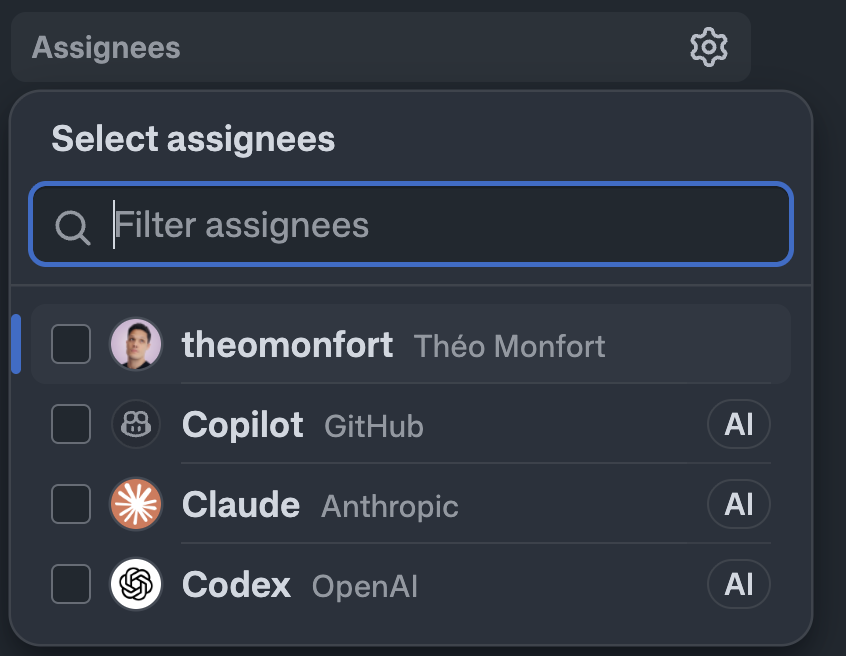
When you assign, you can customize:
- Additional prompt — extra instructions added on top of the Issue description.
- Model selection — pick from Copilot / Claude / Codex.
- Base branch — the branch the work starts from.
11.3 — Review the PR
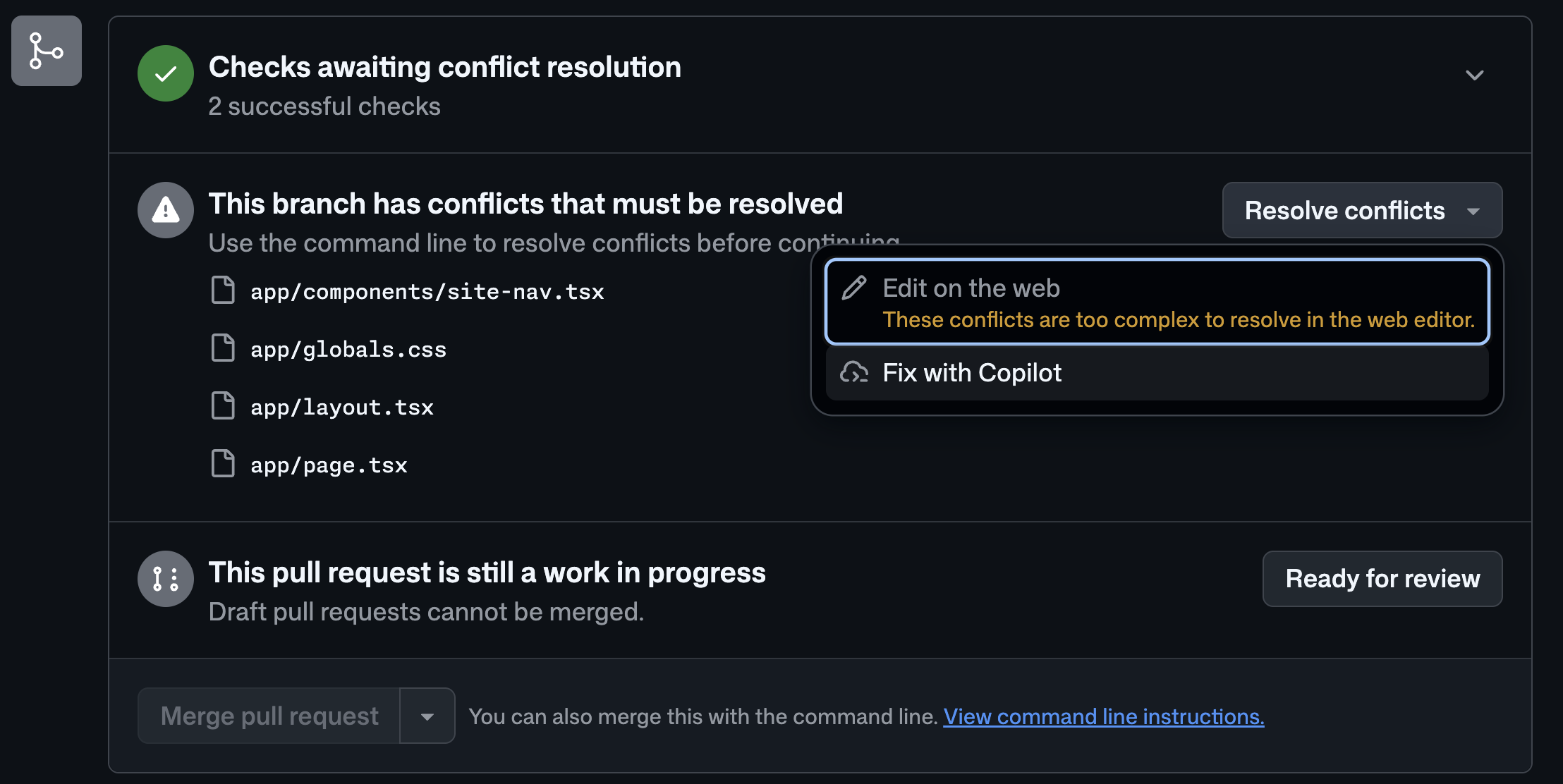
The PR the Cloud Agent creates is opened as a Draft.
- Open the PR and review the changes.
- Click Ready for review to lift the draft state.
- Copilot Code Review kicks off automatically.
11.4 — Try it in your Codespace before merging
Before you merge, it's smarter to actually run the Cloud Agent's PR in your Codespace and check it. Check out the PR branch with the gh CLI (replace <PR-number> with the real PR number).
gh pr checkout <PR-number> && npm install && npm run devWhen the port forwarding notification pops up, click "Open in Browser" to try out the new feature the Cloud Agent shipped. If it looks good, merge the PR; if something's off, leave a comment on the PR and let the Cloud Agent fix it.