Not every update. Just the ones worth remembering.

CHANGELOG

A handpicked shortlist of GitHub updates, with key takeaways and practical context.

42 curated updates ↓ Newest first
  1. GitHub CLI: short-lived OAuth tokens without repeated sign-ins

    Opt in to expiring access tokens that gh refreshes automatically. A leaked access token becomes unusable within hours, while normal CLI and configured HTTPS Git operations keep working.

    Before and after

    Before: GitHub CLI’s default interactive sign-in used a long-lived OAuth token. You did not need to sign in repeatedly, but a leaked token could remain usable until revoked.

    Now, if you opt in: gh stores a short-lived access token and a rotating refresh token. When needed, it refreshes credentials automatically. You keep the sign-in convenience while a stolen access token becomes unusable within hours. You must still protect the stored refresh credential and revoke compromised credentials.

    How to opt in

    With GitHub CLI v2.103.0 or later:

    gh auth login --expiring
    gh auth status

    gh auth status shows the credential state, including access-token expiry. To request expiring credentials on subsequent sign-ins without repeating the flag:

    gh config set expiring_credentials enabled

    Existing sign-ins are not automatically converted. Manually supplied tokens keep their existing behavior; this does not turn a PAT or an environment-variable token into a refreshable OAuth credential.

    Two things to check before switching

    • Git over HTTPS: run gh auth setup-git so gh serves and refreshes credentials as Git’s credential helper. Git 2.46 or newer is recommended so expiring credentials are not cached beyond their lifetime. This is unrelated to SSH keys.
    • Scripts that copy tokens: a script or extension that captures gh auth token once and stores the result will eventually hold an expired token. Prefer calling gh directly, or obtain a fresh token with gh auth token whenever an external tool needs one. Do not print it into logs. Delay migration for workflows that require a fixed, long-lived token.

    When adding scopes later with gh auth refresh, also pass --expiring or keep the configuration setting enabled; otherwise the operation can replace the expiring credential with a non-expiring one.

    Availability

    As of 2026-10-22, this is an opt-in public preview on github.com and ghe.com, supported on GHES starting with 3.23. Unsupported servers fall back to non-expiring tokens, so check the resulting credential state rather than assuming the flag guarantees expiry.
    Authentication and expiring tokens / GitHub CLI v2.103.0

    Read the official announcement
  2. Package firewall: block risky npm packages before installation

    An enterprise-controlled gateway checks package requests before downloads reach developers, coding agents, or CI runners. It adds install-time enforcement, not just another dependency alert.

    What changes in practice?

    A malicious dependency can execute code during installation, before anyone reviews a PR. Package firewall places a policy gate in that download path, including when an agent installs a package without a human approving each command.

    Instead of contacting the public registry directly, configured endpoints send metadata requests and package downloads through GitHub’s firewall. It evaluates the enterprise policy and blocks requests that fail it. This complements dependency alerts and PR checks; it does not replace them.

    What can the policy block?

    • Newly published versions: a configurable minimum package age introduces a cooldown, leaving time for threats to be discovered. For example, an enterprise can require a version to be at least three days old.
    • Known malware and vulnerabilities: checks use the GitHub Advisory Database. Administrators choose the vulnerability severity threshold that blocks installation.
    • Attestation downgrades: blocks a version that lacks SLSA attestations when earlier versions had them, a possible sign of a compromised publishing process.
    • New install scripts: the setup documentation also describes blocking newly introduced install scripts, such as preinstall or postinstall.

    For example, a CI build attempting to download a version published minutes ago can be blocked by the cooldown even before a malware advisory exists. This reduces exposure; it does not prove that an older or allowed package is safe.

    Setup and exceptions matter

    Configure controls under Enterprise → Policies → Package firewall, then point the package manager at the enterprise-specific firewall registry with an authentication token belonging to an enterprise member. Keep credentials in a secret store, never in a committed configuration.

    Enabling a policy alone does not reroute package traffic. Only requests passing through the firewall are checked. Developer machines, agent environments, and CI runners must be configured accordingly. Existing direct registry routes can bypass it.

    Blocked requests include a link to request an exception, useful when an urgent security fix is itself too new for the cooldown. Enterprise administrators and security managers review those requests.

    Availability

    As of 2026-10-22, the public preview supports npm packages only and is available to GitHub Enterprise Cloud, including data residency. It is free during preview; GitHub says general availability will use metered billing.

    Setup, policy controls, and exceptions

    Read the official announcement
  3. Copilot model policy API: automate existing model controls

    Read and update model availability through REST instead of repeating settings changes by hand. Automate policy checks, approved rollouts, and enterprise-wide restrictions.

    What can we do now that we could not do before?

    The new capability is a supported REST interface, not model restrictions themselves. Administrators could already control model availability in GitHub’s settings. Generally available GET and PATCH endpoints now expose those policies at four scopes: enterprise, organization, enterprise team, and agent apps.

    This lets you build automation around those controls rather than repeat manual settings changes:

    • Check policy drift: retrieve current settings, compare them with an approved baseline, and report differences on a schedule.
    • Apply reviewed changes: store the intended configuration in a repository, review it through a PR, then have an authorized workflow call PATCH. This is a workflow you can build with the API, not a new built-in GitOps feature.
    • Automate selective rollouts: enable a delegated model for approved organizations, or for pilot enterprise teams in teams mode. Later, expand access through the same automation.
    • Respond centrally: disable a model at enterprise level after a compliance decision, instead of updating each delegated group separately.

    The existing policy hierarchy still applies

    Organization mode delegates decisions to organizations. Enterprise teams mode is still a separate opt-in preview: it deactivates organization-level model settings and delegates to enterprise teams and apps instead. These are not four independent layers that you can freely combine.

    An enterprise-level restriction cannot be overridden by a team. In teams mode, access is additive across a user’s teams. API responses describe configured and inherited policy states, not a definitive per-user access report.

    A read-only first step

    With an appropriately authorized account, replace ENTERPRISE with the enterprise slug:

    gh api \
      -H "X-GitHub-Api-Version: 2026-03-10" \
      /enterprises/ENTERPRISE/copilot/model-policies

    Use the returned model identifiers when preparing updates, and check the relevant endpoint’s permissions and editable states before writing.

    Enterprise AI controls REST API / Organization Copilot REST API / Model availability and delegation

    Read the official announcement
  4. Open source license compliance is generally available

    Define an enterprise-wide dependency license policy and enforce it before merge with rulesets, PR annotations, and centrally reviewed exceptions.

    What’s new?

    • Centralized license policy: expands beyond the dependency review action’s license checks with an enterprise-wide policy. Branch rulesets target the repositories and branches where compliance results are required before merging.
    • PR-time enforcement: new or changed dependencies, including detected transitive dependencies, are checked against the policy. Noncompliant dependencies produce PR annotations. Resolve violations by removing or replacing the dependency, amending the policy, or obtaining an approved exception.
    • Delegated governance: the new Enterprise Open-Source License Manager role lets designated individuals or teams review exception requests. Pending requests appear in the enterprise console and trigger email notifications.
    • APIs and audit logs: download, update, or replace the enterprise policy through the API. Another endpoint checks package compliance, enabling coding agents to check proposed dependencies before incorporating them. Policy changes now emit audit log events.
    • Data residency: license data is now available to GitHub Enterprise Cloud with data residency, including in the dependency graph and SBOM exports.

    Availability and rollout

    Available for GitHub Enterprise Cloud, including data residency, on repositories with GitHub Code Security enabled. This is separate from the free core Dependabot features.

    A ruleset in Active mode blocks PRs with noncompliant dependencies. Evaluate mode runs checks and annotates PRs without directly blocking merges. However, branch protection requiring conversation resolution can still block a merge on those annotations.

    About open source license compliance / Configure license policies / Dependency graph REST API

    Read the official announcement
  5. Agentic autofix for code scanning alerts is generally available

    Assign code scanning alerts to Copilot: it explores the codebase, proposes a fix, reruns CodeQL, and opens a draft pull request for review.

    What’s new?

    • End-to-end remediation: Copilot explores relevant files, proposes a fix, reruns CodeQL, and iterates if needed before opening a draft pull request. The PR explains the fix and its validation steps.
    • Individual or bulk assignment: use Assign to Copilot on an alert, or select up to 25 alerts in the repository alert list or a security campaign to fix together in one PR.
    • Default branch only: alerts detected only on pull requests or other branches cannot be assigned to Copilot.
    • REST API: assign alerts through the Update a Code Scanning Alert endpoint with assignees: ["copilot-swe-agent[bot]"].

    Access and billing

    Available to GitHub Code Security and GitHub Advanced Security customers on GitHub Enterprise Cloud, including data residency. An enterprise administrator must allow the Agentic Autofix policy, then an organization or repository administrator enables the feature. A Copilot billing method is required.

    When enabled, Assign to Copilot replaces the free Generate Fix option on individual alerts. Agentic autofix consumes Code Security AI Credits and GitHub Actions minutes. AI Credit usage appears under Advanced Security in enterprise billing’s AI usage section.

    Organizations that used the public preview must enable the feature again. Always review and test the proposed changes before merging.

    Autofix documentation / Managing access

    Things to try in a demo
    1. Open octodemo's Settings → Advanced Security → Global settings and show Agentic Autofix under Code scanning. Inspect the setting without changing it.
    2. Explain the rollout: the enterprise must first allow Agentic Autofix under Policies → Advanced Security. The organization can then enable it for eligible repositories, and repository administrators can opt out.
    3. Explain the result and cost: Copilot prepares a draft pull request after validating the fix with CodeQL. Starting a session consumes Code Security AI Credits and GitHub Actions minutes.
    Read the official announcement
  6. Copilot in Slack and Teams: work across repositories

    Use @GitHub to create issues, open pull requests, track PRs, and investigate bugs across multiple repositories in a single Slack or Teams conversation.

    Key takeaways

    • Multiple repositories, one conversation: create issues, make code changes and open PRs, track your open PRs, or investigate bugs across frontend and backend repositories without starting a new conversation.
    • More natural interactions: mention @GitHub anywhere in a message, not just at the beginning, and switch repositories more smoothly.
    • Better context and reliability: shared Slack messages and threads can provide context. Task startup, error handling, and recovery from interruptions are improved in both Slack and Teams.

    Previous update

    The September 25 update added richer context from Slack files and message links, plus Teams images, forwarded messages, and conversation history. It also introduced model switching that persists for the conversation, similar-issue checks before issue creation, and links back to the original discussion.

    Things to try in a demo
    1. In Slack, send @copilot settings to open the settings interface.
    2. Walk through the available settings to show how Copilot can be configured directly from the conversation.
    Read the official announcement
  7. Lock Actions workflow dependencies with a lockfile

    Workflows can now pin the actions they use to the commits recorded in .github/workflows/actions.lock. Even if a tag or branch moves later, only the code you reviewed runs.

    What changes

    • The problem: tags and branches such as the v4 in actions/checkout@v4 can be moved to a different commit later. If an action is compromised, your next run executes different code even though nothing changed in your repository.
    • Lockfile: .github/workflows/actions.lock records the commit behind each action, including transitive dependencies and reusable workflows. Your workflow keeps references like @v4, but the recorded commit is what runs. owner_id and repo_id also confirm the repository behind the name is still the one you locked.
    • gh actions-lock extension: generates and updates the lockfile, with --verify for CI and --verify-local for offline pre-commit checks. You can onboard workflows one at a time.
    • Require lockfile policy: enterprise, organization, and repository Actions policies can block runs of workflows that are not covered by the lockfile.
    • Dependabot: when it bumps an action in an onboarded workflow, it regenerates the lockfile entry in the same pull request. It does not onboard new workflows for you.

    Watch out

    Locking only guarantees the same code runs every time; it does not tell you whether that code is safe. Review dependencies before you lock them. On first run, @v4 is rewritten to something like @v4.4.0, so review the diff too. If you only allow specified actions, the allowlist is checked against locked SHAs, so entries pinned to a tag stop matching. Public preview on GitHub Enterprise Cloud (including data residency), Team, and Free.

    Workflow dependency lockfiles (official documentation) / Locking action dependencies / Enforcing lockfiles / gh-actions-lock

    Things to try in a demo
    1. Open this site's actions.lock and show its two sections: workflows (the actions deploy.yml uses) and dependencies (the commit SHA each tag resolves to, plus owner_id / repo_id). Point out the transitive upload-artifact dependency recorded under upload-pages-artifact.
    2. In deploy.yml, actions/checkout@v4 was rewritten to a full version such as @v4.4.0. In a terminal, run gh actions-lock --verify .github/workflows/deploy.yml to confirm the lockfile is up to date.
    3. In theomonfort-org, open Settings → Actions → Policies → New policy and turn on Require lockfile. Start in Evaluate mode scoped to specific repositories and workflows, check blocked runs in Policy insights, then switch to Active.
    Read the official announcement
  8. HydraFusion updates and the new HydraFusion Max

    HydraFusion's model pool now includes the latest frontier models, with per-step reasoning effort and improved Cascade / Critique workflows. HydraFusion Max adds higher reasoning effort for more demanding tasks.

    What’s new in HydraFusion

    • Latest frontier models: the model pool now includes Claude Opus 5.5, GPT-6 Astra, GPT-6.1 Sol, and GPT-6 Luna. The models used for each task depend on the workflow.
    • Per-step reasoning effort: previously each model ran at its default effort. Now drafts use medium effort and reviews use high effort, keeping drafting efficient while spending deeper reasoning on checking and improving the work.
    • Cascade: can now include a judging step that inspects the initial work and requests a repair only when needed.
    • Critique: relies less on text summaries and more on tools that inspect the workspace directly, with parallel critic models.

    What is HydraFusion Max?

    It uses the same architecture and workflows as HydraFusion, but is tuned for frontier capability on more demanding tasks. It applies higher reasoning effort (extra high) where depth matters most, while orchestration still considers token efficiency.

    • HydraFusion: balances speed, cost, and performance, with moderate token savings. For general agentic tasks.
    • HydraFusion Max: for tasks that need the deepest reasoning and most thorough analysis.

    Before rolling it out

    • Clients: both options are available in VS Code, the Copilot app, and Copilot CLI.
    • Plans: Copilot Pro, Pro+, Business, and Enterprise, with experimental or preview features enabled. Organization model policies apply.
    • Billing: as before, each model used is billed at its standard rate, and the Auto discount does not apply. No usage guidance has been published for Max, so compare it with HydraFusion on the same task.
    • Research preview: no SLA, and not intended for production workloads.

    For the three workflows and how HydraFusion differs from Auto, see HydraFusion on Sept 10 (CLI). For enabling it in VS Code and the Copilot app, see HydraFusion on Sept 30.

    Using HydraFusion (official documentation) / Feedback (GitHub Community)

    Things to try in a demo
    1. Setup: in Copilot CLI, start with copilot --experimental and use /model. In VS Code, enable chat.copilot.hydraFusion.enabled and use the model picker. In the Copilot app, turn on HydraFusion in Settings → Experimental and use the model picker. Select HydraFusion Max.
    2. In a demo repository, give one demanding, well-scoped task in a single prompt, such as a bug fix that needs root-cause analysis, with the goal and acceptance criteria. Show the chosen execution pattern (Single / Cascade / Critique) and each step in the progress display.
    3. Run the same task with HydraFusion and compare quality, elapsed time, and usage. In Copilot CLI, /usage shows the AI credits each model consumed.
    Read the official announcement
  9. AI Scan metrics in security overview

    Organization and enterprise security overview now shows AI Scan for pull requests metrics: findings, resolutions, remediation rate, and how often developers apply autofix suggestions.

    Key takeaways

    • Renamed page, two tabs: “CodeQL pull requests” is now “Code scanning on pull requests”, with separate CodeQL and AI Scan tabs. The previous metrics live under the CodeQL tab.
    • AI Scan tab metrics: total findings (with / without an autofix suggestion), resolved findings, remediation rate, repositories that generated findings, trends over the selected period, and how often developers applied autofix suggestions.
    • Why it matters: evaluate AI Scan’s effectiveness and developer response without reviewing individual pull requests, and make informed rollout and investment decisions.
    • Availability: public preview on github.com, including GitHub Enterprise Cloud, for customers with GitHub Code Security or GitHub Advanced Security. GitHub Enterprise Server is not supported. CSV export is not yet available on the AI Scan tab.

    To manage AI Scan enablement through APIs, see AI Scan APIs on Sep 10.

    Viewing code scanning metrics for pull requests (official documentation) / AI Scan for pull requests / AI Scan Community discussion

    Things to try in a demo Open demo
    1. In octodemo, open Security and quality → Insights → Code scanning on pull requests and switch between the CodeQL and AI Scan tabs.
    2. On the AI Scan tab, show total findings (with / without an autofix suggestion), resolved findings and remediation rate, the per-repository breakdown, and trends. Change the period with the date picker.
    Read the official announcement
  10. Enterprise managed settings: force refresh on startup and minimum client versions

    Administrators can require Copilot clients to fetch current server-managed settings at startup instead of using a cached policy. The sandbox key now also enforces a minimum client version.

    Key takeaways

    • Force refresh: set "forceRemoteSettingsRefresh": true (JSON Boolean) in managed-settings.json. Supported in Copilot CLI, VS Code, and the GitHub Copilot app. While active, a cached response cannot satisfy startup, so a policy change applies before Copilot starts.
    • Fails closed: if the client cannot confirm the current policy, it does not run with a stale one. Copilot CLI restricts affected operations, and VS Code blocks Copilot features until the refresh succeeds. Users need a network connection at startup.
    • When it applies: through MDM or file-based delivery, from the very first startup (before sign-in). Through server-managed settings (.github-private), from the next startup after the client has received it once. Without this key, clients keep the normal cache (about one hour).
    • Minimum version for sandbox: when the sandbox key is in managed settings, users on older clients are blocked until they update: VS Code 1.141.0, Copilot CLI 1.0.93, GitHub Copilot app 1.1.26.

    Playbook: Copilot managed settings (slide 11)

    Requiring fresh settings on startup (official documentation) / forceRemoteSettingsRefresh reference / Minimum client versions for sandbox

    Things to try in a demo
    1. Open theomonfort-org/.github-private → copilot/managed-settings.json and show "forceRemoteSettingsRefresh": true alongside the sandbox key.
    Read the official announcement
  11. Secret scanning: Anthropic keys blocked by default, Salesforce joins as a partner

    Secret scanning now detects two Anthropic API key types and blocks them with push protection by default. Salesforce joins the secret scanning partner program, and Cloudsmith API keys are now detected.

    Key takeaways

    • Anthropic keys blocked by default: anthropic_service_api_key and anthropic_user_api_key are newly detected and added to push protection defaults. Repositories with secret scanning enabled, including free public repositories, automatically block commits containing these secrets.
    • Salesforce joins as a partner: when salesforce_marketing_cloud_api_oauth2_token is found in a public repository, GitHub forwards it to Salesforce so the credential can be revoked or rotated.
    • Cloudsmith detection: cloudsmith_api_key is now automatically detected in your repositories.
    • Partner vs. User: Partner secrets are reported to the issuer when found in public repositories. User secrets generate alerts in public or private repositories.

    Playbook: What gets detected (slide 4)

    Supported secret scanning patterns (official documentation) / About secret scanning / Secret scanning partner program

    Things to try in a demo Open demo
    1. Open octodemo's Pattern configurations, search for anthropic, and show the GitHub default for anthropic_service_api_key and anthropic_user_api_key. Do not change the setting.
    2. On the same page, use the Enterprise setting column to explain that the default can be overridden per pattern. Do not push a real Anthropic key.
    Read the official announcement
  12. Copilot code review: organization billing and review request controls

    Organization owners can bill Copilot code reviews from licensed members to the organization instead of the members' quotas, and can limit review requests to people with a Copilot license from the organization or enterprise.

    Key takeaways

    • Bill the organization: by default, reviews associated with members who have a Copilot license use that member’s entitlement, and the review fails once their quota is exhausted. Choose Organization to bill the organization that owns the repository instead, so member quotas are not used up.
    • Requirements: billing the organization requires AI credits paid usage; a budget is optional. The choice applies to manual and automatic reviews and changes billing only. It does not grant access to Copilot code review.
    • Block external licenses: by default, anyone with a paid Copilot license (including a personal license or one from another organization) can request a review in repositories they can access. Turn on Only allow Copilot code review to be triggered by authorized users to accept only licenses provided by your organization or enterprise.
    • Scope of the restriction: unauthorized people do not see Copilot as a reviewer, and their API requests do not start a review. Automatic reviews from their personal settings do not run, but automatic reviews from repository or organization rulesets still run.

    Settings

    • Enterprise: AI controls → Agents → Copilot code review → Choose how members with a Copilot license are billed (Member / Organization / Let organizations decide)
    • Organization: Settings → Copilot → Code review → Choose how members with a Copilot license are billed, and Only allow Copilot code review to be triggered by authorized users. When the latter is on at this level, it applies to every repository and repository admins cannot turn it off.
    • Repository: Settings → Copilot → Code review → Only allow Copilot code review to be triggered by authorized users

    For the estimated cost per review, see Code review on Oct 2.

    Configuring code review (official documentation) / Code review usage and billing / Reviews requested with an external license

    Things to try in a demo
    1. Open the organization's Settings → Copilot → Code review and show Choose how members with a Copilot license are billed (Member / Organization). Do not change the setting.
    2. On the same page, show Only allow Copilot code review to be triggered by authorized users and explain that, when on at the organization level, repository admins cannot turn it off.
    3. Open a repository's Settings → Copilot → Code review and show the same toggle at the repository level.
    Read the official announcement
  13. Copilot code review: request via API, Balanced is the new default

    Request a Copilot code review through the REST and GraphQL APIs and set the review effort level per request. The Default review effort level now uses Balanced.

    Key takeaways

    • Request reviews via API: request a Copilot review through the REST and GraphQL APIs, optionally setting the review effort level per request. Start reviews from your own scripts, workflows, and internal tools.
    • Balanced is the default: as announced on August 28, Default uses Balanced since September 28, for new and existing repositories and organizations. Settings where Lite was explicitly selected are unchanged.
    • Watch the cost: Balanced analyzes more deeply than Lite, so it consumes more AI credits. Estimates are $0.05 to $1 for Lite and $0.25 to $5 for Balanced (per review, excluding Actions minutes).
    • Plans: Copilot Pro, Pro+, Max, Business, and Enterprise.

    Switching back to Lite

    Change Default to Lite at the level you manage. Each level can override the one above it.

    • Enterprise: AI controls → Agents → Copilot code review
    • Organization / repository: Settings → Copilot → Code review
    • Personal: profile → Copilot settings → Copilot → Code review

    For personal settings and enterprise defaults, see Code review settings on Sept 23.

    Configuring code review (official documentation) / Review effort and estimated cost

    Things to try in a demo Open demo
    1. Setup: in a demo repository where Copilot code review is available, prepare one PR with a small change, and sign in to the gh CLI.
    2. Run gh api -X POST repos/OWNER/REPO/pulls/NUMBER/requested_reviewers -f 'reviewers[]=copilot-pull-request-reviewer[bot]' (replace OWNER / REPO / NUMBER with your demo PR). Show Copilot appearing under Reviewers and the review starting.
    3. When the review finishes, check the severity levels and the effort level used in the overview comment.
    4. Open the organization's Settings → Copilot → Code review and show the Default (uses Balanced) and Lite options. Do not change the setting.
    Read the official announcement
  14. Copilot can now interact with desktop apps

    With computer use in Copilot CLI and the Copilot app, Copilot can click, type, scroll, and navigate apps for you, including GUI-only software with no API, CLI, or MCP integration.

    Key takeaways

    • Off by default: must be enabled explicitly. Available for local sessions on macOS and Windows.
    • Approval before control: whether Copilot asks before controlling an app follows the tool permission settings of the app or CLI. Always allow is shared between the app and CLI on the same computer and can be removed per app in the app settings. Deny rules always take precedence.
    • Admins can turn it off: setting features.computerUse to false in enterprise managed settings blocks it, and local settings cannot override that.
    • When to use it: if an API, MCP server, terminal command, or browser tool can do the job, it gives more predictable results. Computer use is for tasks that only a visual interface can complete. It can pick the wrong control when UIs change, so review actions that modify data. Anything visible on screen becomes context for Copilot.

    How computer use works and its limits (official documentation) / Using computer use in Copilot CLI

    Things to try in a demo Open demo
    1. Setup: in the Copilot app, open Settings → Computer Use and turn on Enable Computer Use (in the CLI, run /computer on and check status with /computer show). On macOS, grant Accessibility and Screen Recording permissions.
    2. Open a demo app with no sensitive content, then describe the outcome, the app involved, and any constraints. Replace APP_NAME in the prompt below with an installed application.
    3. Open APP_NAME and summarize the status information shown in the main window. Do not change any values or submit any forms.
    4. At the approval prompt, check that the app and action match the request, then choose Allow (avoid Always allow for the demo). Show the tool activity in the session. Click Stop or press Esc to interrupt.
    Read the official announcement
  15. Dynamic workflows: define multi-agent processes in code

    In Copilot CLI, the Copilot app, and the Copilot SDK, define in code how automated steps and the work of multiple agents fit together. Run the same steps every time, and pause or resume long runs.

    Key takeaways

    • What it can do: run commands and tools, run tasks in parallel, pass structured results between stages, have subagents verify each other, and pause for review before resuming.
    • How it differs from /fleet: with /fleet, Copilot decides how to split the work each time. With a dynamic workflow, the author defines the steps, conditions, and handoffs in code.
    • Create and share: ask Copilot to write one, or write it yourself with the built-in authoring guidance. Workflows live in Copilot extensions and are session-scoped by default. Copy them to your personal or repository extensions directory to reuse or share them.
    • Set limits: cap concurrent subagents, total subagents, running time, and AI credits. The credit limit is approximate and can be exceeded, so test on a small scope first.
    • Availability: all Copilot plans. In the CLI, copilot workflow run starts a workflow directly from a terminal or script (grant permissions up front).

    How dynamic workflows work (official documentation) / Compared with autopilot and /fleet

    Things to try in a demo Open demo
    1. Setup: no setup is needed in the Copilot app. In the CLI, run /update, then /experimental on (or start with --experimental). Use a demo repository with a few changed files.
    2. Create a dynamic workflow named review-changed that lists changed files, asks an agent to review them, and summarizes the findings.
    3. Point out that creating a workflow does not run it, then ask "What dynamic workflows are available?" to confirm it is registered. Next, ask Copilot to run it on just two or three files with an AI credit limit.
    4. Open /workflows in the CLI or the Workflows button in the app to show phases, subagents, and AI credit usage. A running workflow can be paused and resumed later.
    Read the official announcement
  16. VS Code September releases: from scheduled tasks to PR merge

    Roundup of VS Code 1.136 to 1.140. Automations and agent merge arrive in the Agents window, making it easier to hand agents the work from implementation through pull request merge.

    Agents window

    • Automations (preview): run routine tasks hourly, daily, weekly, or on demand. Start from a template or your own prompt, and share them with your team as .automation.md files.
    • Agent merge (preview): the agent handles review feedback, failed checks, merge conflicts, and workflow reruns, repeating until the pull request is ready to merge. Enable chat.agentMerge.enabled and start it from a session in the Agents window.
    • Pull request form: from a Copilot, Claude, or Codex session, review and edit the title and description, choose draft and merge options, and create the pull request.
    • Dev Container sessions: agents work with your project’s configured tools and dependencies, including on SSH, Tunnel, and WSL hosts.
    • Session cleanup: Mark as Done suggestions after pull requests merge, automatic cleanup, and an app badge for sessions that need attention (all in preview).

    Chat and GitHub integration

    • Attach issues and pull requests: add them from Add Context, or paste a URL into the new-session input. No more copying descriptions or comments.
    • Move quick chats into a project: attach a local folder to a chat started without a workspace, keeping the conversation.
    • HydraFusion in VS Code: eligible users can enable preview features and select it in the model picker (research preview). See HydraFusion on Sept 30.

    These are the main agent-related highlights from VS Code 1.136 to 1.140. Preview features are rolling out gradually, so some settings may not be on by default yet.

    VS Code release notes / Using agent merge

    Things to try in a demo Open demo
    1. Setup: update VS Code to the latest version and open the Agents window. If Automations is not in the sidebar, enable chat.automations.enabled.
    2. Select Automations → Create Automation and choose a demo repository as the workspace. Keep Schedule on Manual for the first run and use the prompt below.
    3. Summarize commits on the current branch from the last 24 hours. Group the summary by feature, fix, and maintenance work. Include commit references and flag changes that might need documentation. Do not modify files.
    4. Select Run now, then open the run from History to show the result. Next, show that Schedule can be changed to Daily. Scheduled runs need the machine awake with VS Code or the Agent Host running, and each run consumes usage.
    Read the official announcement
  17. HydraFusion comes to VS Code and the Copilot app

    After Copilot CLI, HydraFusion is now in the VS Code and Copilot app model pickers. It shows more clearly what happens at each step and reports progress in real time, even on long tasks.

    What’s new

    • VS Code and the Copilot app: previously only in Copilot CLI through /experimental. This was the top request from early feedback.
    • More transparency: see more clearly what HydraFusion is doing at each step of a workflow.
    • Real-time progress: more frequent updates make it clear that HydraFusion is still working, even on long tasks.

    Before rolling it out

    • Plans: Copilot Pro, Pro+, Business, and Enterprise. For Business / Enterprise, preview features must be allowed in organization or enterprise settings.
    • Billing: each model used is billed at its standard rate. The Auto discount does not apply, and a task that uses several models can consume more AI credits.
    • Respects model policies: only uses models available in your plan and allowed by organization / enterprise policies. You cannot choose which models it uses.
    • Research preview: no SLA, and not intended for production workloads.

    For the Single / Cascade / Critique workflows and how HydraFusion differs from Auto, see HydraFusion on Sept 10 (CLI).

    Using HydraFusion (official documentation) / Feedback (GitHub Community)

    Things to try in a demo Open demo
    1. Setup (VS Code): in 1.140 or later, or Insiders, enable chat.copilot.hydraFusion.enabled, then select HydraFusion below Auto in the Copilot Chat model picker.
    2. Setup (Copilot app): update to the latest version, turn on HydraFusion in Settings → Experimental, and select it in the model picker. For Business / Enterprise, an administrator must allow preview features.
    3. In a demo repository, give one well-scoped task in a single prompt, such as a fix across several files, with the goal and acceptance criteria. Show the step-by-step progress, then hover over the response to see which models were used.
    4. Compare against Auto on the same task, checking quality, elapsed time, and usage. Do not assume it is always cheaper or always better.
    Read the official announcement
  18. Agentic autofix learns from past fixes with Copilot Memory

    When Copilot Memory is enabled, agentic autofix uses repository memories to help resolve security alerts and saves new fix patterns for future use.

    Key takeaways

    • Reuses context: existing memories help autofix understand your repository’s secure development patterns.
    • Learns from fixes: new fix patterns become memories that can help with later alerts, Copilot code review, and Copilot cloud agent.
    • Requires Copilot Memory to be enabled. Both agentic autofix and Copilot Memory remain in public preview.

    Copilot Memory (official documentation)

    Read the official announcement
  19. Check enterprise-managed Copilot settings for errors

    An in-product validator detects malformed JSON, unsupported settings, and invalid team mappings that could prevent your Copilot policies from being enforced.

    Key takeaways

    • Where to check: Enterprise → AI controls → Agents → Copilot settings validation. Each issue identifies the file and JSON path. The section is hidden when no issues are found.
    • Files checked: copilot/managed-settings.json, copilot/team-mappings.json, and the team settings files referenced by the mappings.
    • How to fix: commit corrections to the default branch of your .github-private repository, then reload the Agents page to check again.

    Playbook: Copilot managed settings (slide 11)

    Read the official announcement
  20. Usage metrics API adds pull request review stages

    Repository-level Copilot usage metrics now break down pull request review time by stage, showing with a median and 90th percentile whether pull requests wait for a first look, on reviewer back-and-forth, or after approval.

    What it measures

    Each row of the enterprise and organization repos-1-day reports gets a new pull_request_review_times array. For each of three stages it returns a median and a 90th percentile, in minutes.

    • Ready for review → first review: how long until someone looks at it.
    • First review → final review: time spent on back-and-forth between reviewers. 0 when there was a single review.
    • Final review → merge: time spent approved but unmerged.

    Each entry also includes authored_by / reviewed_by (both human in this release) and total_merged. Durations are attributed to the day the pull request merged, and the existing pull_requests fields are unchanged.

    Key takeaways

    • Only human reviews are timed: covers pull requests opened by a person and reviewed by at least one other person. Copilot code review, other bots, and the author are ignored, so total_merged is usually lower than pull_requests.total_merged.
    • No backfill: data builds forward from the release date. Pull requests that became ready for review before September 21, 2026 are left out.
    • An empty array is not zero: the array is [] on days with no qualifying merged pull requests.
    • Access: requires the Copilot usage metrics policy to be enabled. Available to enterprise owners / billing managers, organization owners, and custom roles with View Copilot Metrics.

    Copilot usage metrics API

    Read the official announcement
  21. Issues: private saved views and Relates to links

    Repository Issues pages now support private saved views. The Relates to issue relationship is also generally available.

    Key takeaways

    • Your own issue views: save personalized views on a repository’s Issues page and return to them without rebuilding the same search.
    • Private to you: these saved views are personal, not shared with the rest of the team.
    • Relates to: issue relationships now work across REST and GraphQL APIs, webhooks, timeline events, and Issues / Projects search.
    Read the official announcement
  22. Copilot Business and Enterprise: GA features enabled by default

    Starting October 22, the policy takes effect. Unless admins change the default, eligible GA features left unconfigured will be enabled automatically.

    Key takeaways

    • Configure now: AI Controls → Copilot → Default policy for new features. Choose Enabled, Disabled, or Let organizations decide.
    • Covers current and future eligible GA features, including Copilot code review and MCP servers.
    • Explicit feature settings are preserved. Preview features remain opt-in.

    Scope and exceptions (official documentation)

    Things to try in a demo Open demo
    Read the official announcement
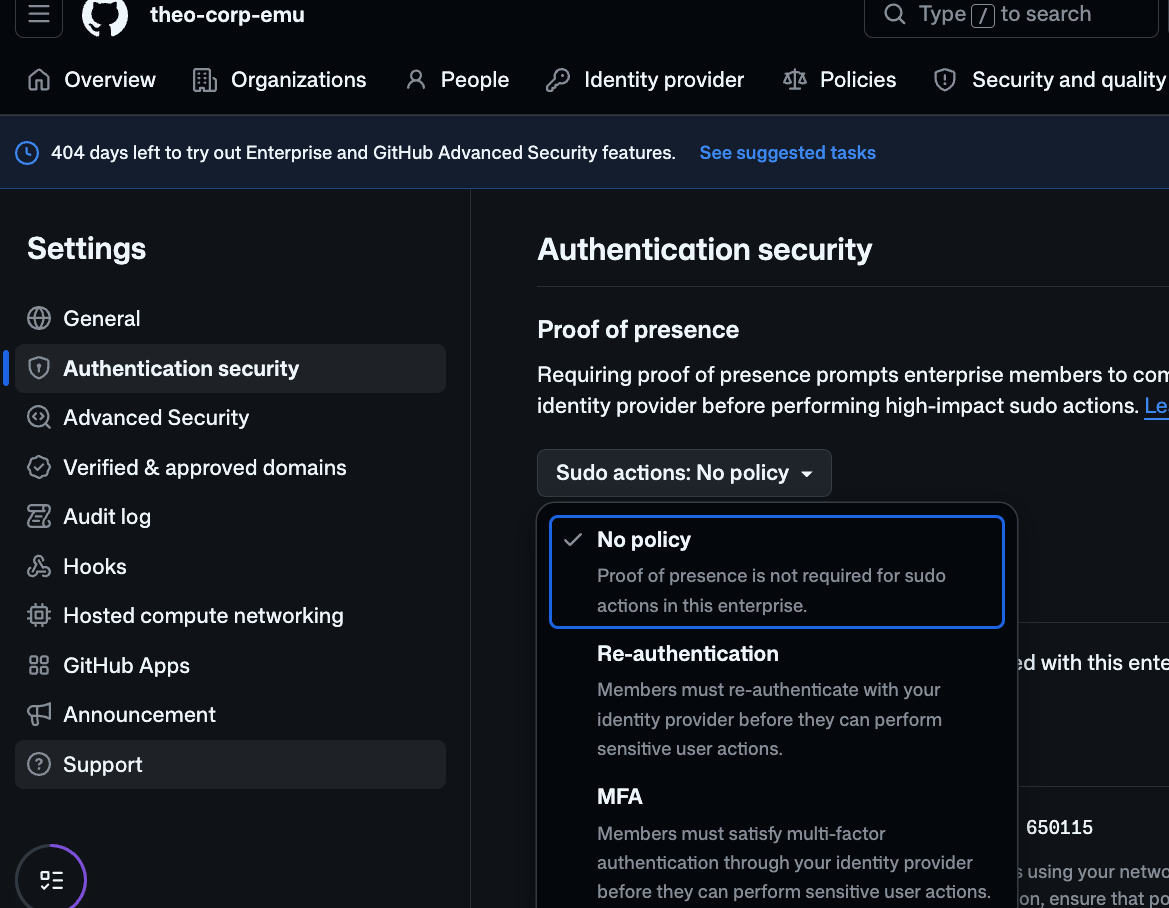
  23. Proof of presence for high-impact actions

    Require IdP re-authentication or MFA before sensitive actions such as creating tokens, editing webhooks, or changing security settings.

    Key takeaways

    • Scope: EMU enterprises on github.com or GHEC-DR using Microsoft Entra ID for SSO (SAML or OIDC).
    • Valid for two hours: after a successful check, further high-impact actions in the same browser session require no new challenge.
    • PR merges are not covered yet: support is coming soon.

    Settings

    In the enterprise Settings → Authentication security → Proof of presence, choose the Sudo actions policy: No policy / Re-authentication / MFA.

    Proof of presence Sudo actions policy selector

    Configuration (official documentation)

    Things to try in a demo Open demo
    Read the official announcement
  24. Copilot code review: personal settings and enterprise defaults

    Personal automatic-review and review-effort settings are now available on all Copilot plans, including Business and Enterprise.

    Key takeaways

    • Personal settings: profile → Copilot settings → Copilot → Code review. Configure automatic reviews for PRs you create or coauthor, with separate toggles for drafts and new pushes.
    • Default review effort: choose Lite or Balanced. You can override it when manually requesting a review.
    • Enterprise defaults: Enterprise → AI controls → Agents → Copilot code review → Default review effort level. Choose Lite, Balanced, or the GitHub default for organization-owned repositories. Organizations and repositories can override this.
    Read the official announcement
  25. Local sandboxing in the Copilot app

    Limit filesystem, network, and credential access per project for local repository and worktree sessions in the Copilot app.

    Key takeaways

    • Off by default: in the desktop app, use Settings → [project name] → Sandbox → Sandbox new sessions for new local sessions. Replace [project name] with your project’s name. In an already-running local session, /sandbox on enables sandboxing for that session only.
    • Policy changes: filesystem, network, and credential changes apply to new or restarted sessions.
    • No unprotected fallback: if the OS cannot enforce the policy, the shell fails with an error.
    • Local app sessions only: cloud and remote-host sessions are excluded. Copilot CLI settings are separate.

    Setup instructions (official documentation)

    Read the official announcement
  26. Monitor Copilot app agents with OpenTelemetry

    The Copilot app can send agent activity to your organization's monitoring tools, with configuration managed centrally through enterprise settings.

    Key takeaways

    • See what the agent did: follow model calls and tool use step by step in an OpenTelemetry-compatible monitoring platform to investigate unexpected behavior.
    • Configure centrally: use the telemetry property in managed-settings.json to enable export and set the receiving endpoint.
    • Content is excluded by default: prompts, responses, and tool arguments are not captured unless enabled. Review sensitive-data risks before turning content capture on.

    OpenTelemetry for agent monitoring (official documentation)

    Read the official announcement
  27. Faster C++ code navigation in Copilot CLI

    Whole codebase indexing builds a reusable map of functions, classes, and their relationships across your C++ project, including files that aren't open.

    Key takeaways

    • For developers: less waiting when asking “Where is this function defined?” or “Where is it used?” across the project. This speeds up code exploration, not your program.
    • Where it works: GitHub Copilot CLI on Windows, macOS, and Linux, with the Microsoft C++ Language Server plugin and project compilation information (compile_commands.json) configured.
    • On by default once set up: the first index can take time and extra memory. It is then reused and updated. Check progress with /lsp logs.

    Setup and prerequisites (official documentation)

    Read the official announcement
  28. Export your enterprise credential inventory

    Export an enterprise-wide inventory of SSH keys, personal access tokens, and app credentials to review access and investigate security incidents.

    Key takeaways

    • UI and API: export the full CSV from enterprise settings, then filter it by user, app, type, or organization. A paginated REST API supports automated reporting.
    • Metadata, not secrets: review owners, permissions, creation / expiration dates, and last use. Token values are not included.
    • Access and availability: enterprise owners or roles with View enterprise credentials. Available on GitHub Enterprise Cloud; Enterprise Server support is planned for a future release.

    Reviewing credentials (official documentation)

    Credential inventory export (REST API)

    Things to try in a demo Open demo
    1. Open Settings → Authentication security → Credentials. Show the Overview counts and the Export CSV button. Use sanitized sample data if demonstrating CSV filtering.
    Read the official announcement
  29. The refreshed PR list is generally available

    The new repository Pull requests page is now available to all GitHub users, with advanced search, bulk actions, and more context in the list.

    Key takeaways

    • Less filter syntax to memorize. Content assist helps build filters. Combine conditions with AND / OR and nested searches.
    • Jump straight to your PRs. The collapsible sidebar includes shortcuts such as Authored by me and Involves me.
    • More context without opening each PR. See status checks, stack indicators, unread updates, milestones, and linked issues. Compact view fits more PRs on screen.
    • New since preview: bulk actions for closing, labeling, and changing milestones. Click a review status to filter the list.
    Things to try in a demo Open demo
    1. Switch between Authored by me and Involves me in the sidebar to find PRs you created or participate in.
    2. Type is in the search box, pause, and select a filter from the Content assist suggestions.
    3. In the search box, enter: label:stacked-pr OR label:enhancement
    4. Look for stack indicators and status check counts and results in the list.
    5. Switch to compact view and compare how many PRs fit on the page.
    6. Select PRs to show the bulk-action menu without applying changes. Click a review status to filter the list.
    Read the official announcement
  30. Copilot code review: clearer progress and smarter suggestions

    Track findings across reviews, keep comments open when requested, and get tailored commit messages when applying suggestions in a batch.

    Key takeaways

    • Clearer overview: findings are grouped into Open, Resolved since last review, and Previously missed, with severity and the review effort level shown.
    • Previously missed: findings newly discovered in existing changes appear in the overview only, not as additional inline comments.
    • Smarter auto-resolution: Copilot respects replies asking it to leave a comment open. It can also resolve comments with Won't Fix or Incorrect reasons based on subsequent commits.
    • Batch suggestions: committing an eligible, complete batch generates a relevant commit title and optional description based on the selected changes.
    Read the official announcement
  31. Copilot impact dashboard shows feature engagement

    See which Copilot features developers use regularly, directly in the dashboard and in enterprise / organization report APIs.

    Key takeaways

    • Visible in the dashboard: counts active users who engaged with each feature on at least two days during a 28-day period, helping identify where more training is needed.
    • Feature breakdown: code completion, agent edit, code review (active / passive), cloud agent, CLI, and app. One user can count toward multiple features.
    • API updates too: copilot_feature_engagement adds the same counts to 28-day aggregate reports, not per-user reports. users_in_phase_28d adds each AI adoption phase’s full rolling 28-day population, rather than only users active that day.
    • Access: requires the Copilot usage metrics policy to be enabled. Available to enterprise owners / billing managers, organization owners, and custom roles with View Copilot Metrics.

    Copilot usage metrics API

    Read the official announcement
  32. Copilot budget increase requests are generally available

    Members who exhaust their Copilot AI credits can request a higher budget. Administrators can approve, adjust, or deny it directly in settings.

    Key takeaways

    • Availability: Copilot Business and Enterprise under usage-based billing. Not available for enterprises with managed users (EMU).
    • Who approves: organization owners, enterprise owners, or billing managers. Requests go to the account that pays for the budget, not automatically to the enterprise.

    Settings

    1. Find requests: open the paying organization’s or enterprise’s Settings → Requests from members.
    2. Approve or adjust: enter the new total budget, select the requests, then click Approve and increase. The amount replaces the previous limit; it is not an amount added on top. The change applies immediately. Requests can also be denied.
    3. Configure budgets separately: open Billing & Licensing → Budgets and alerts. To create a per-user budget, use New budget → Bundled AI credits budget, then select Users under Budget scope.

    Spending controls: user-level budgets always stop usage at the limit. For other applicable budgets, Stop usage when budget limit is reached blocks further usage; leaving it unchecked does not. Increasing a user’s budget does not bypass other exhausted budget caps.

    Managing budget requests / Budget settings

    Read the official announcement
  33. Enforce Advanced Security settings across organizations

    Enterprise administrators can now prevent both organization and repository administrators from overriding enterprise security configurations. Previously, enforcement only restricted repository owners.

    Enforcement options

    In an enterprise security configuration, use the Enforcement dropdown:

    • Don't enforce: authorized administrators can change the configured settings.
    • Enforce for repository owners: repository owners cannot override the settings, but organization owners can.
    • Enforce for repository and organization owners: the new option also prevents organization owners from overriding the settings, keeping enterprise security policies consistent.

    Security configurations (official documentation)

    Read the official announcement
  34. Set cost and quality priorities for Auto model selection

    Copilot Auto adds Efficiency, Balance, and Intelligence tiers so you can choose what automatic model selection should prioritize.

    Key takeaways

    • Efficiency: prioritize low cost for quick, straightforward tasks.
    • Balance: weigh cost, quality, and latency together for everyday work.
    • Intelligence: prioritize quality for complex tasks.

    Not three separate model pools

    All three tiers use the same model pool, with different selection priorities.

    Rolling out in VS Code, Copilot CLI, and GitHub Copilot app. Billing is based on the model Auto actually selects, not the chosen tier. Paid subscribers retain the 10% discount on usage billed through Auto.

    Hydra and HydraFusion

    Auto uses HyDRA for model routing. HydraFusion extends this approach to workflow selection: a single model, escalation to a stronger model, or review by another model. It is available as an experimental research preview in Copilot CLI.

    When models switch

    Previously, Auto reevaluated at session start and after compaction to preserve the cache. CLI and Copilot App now periodically reassess the model during a conversation, using the latest prompt and recent context, rather than on every turn.

    Auto model selection (official documentation)

    HydraFusion: from model selection to workflow orchestration (official blog)

    Playbook: model choice and Auto mode (slide 9)

    Read the official announcement
  35. Copilot review automatically resolves addressed comments

    After you push a fix, Copilot resolves its own addressed comments during rereview. Suggested commit messages and the analysis behind reviews have also improved.

    Key takeaways

    • Resolution happens during rereview. When a later commit addresses the underlying feedback, Copilot resolves its own comment. Pushing a commit does not simply close every thread.
    • Outstanding feedback stays open. Open comments remain useful for tracking work that still needs attention.
    • Smarter commit messages for suggestions. Applying a Copilot suggestion now offers a message based on the change rather than a standard placeholder.

    Analysis improvements behind the scenes

    Copilot now uses the Copilot SDK’s full set of shell tools behind the Copilot agent firewall. It has more ways to validate code, including builds, tests, and targeted scripts. This does not guarantee that every review runs every test.

    Lite reviews also use an ensemble of agents, combining their perspectives into one review. Published quality and cost improvements are experimental results, not guarantees for individual reviews. The way you request reviews is unchanged.

    Things to try in a demo
    1. Demo ready. Use the prepared private demo repository to show Copilot review comments.
    2. Address only some findings and push. After rereview, show resolved comments alongside feedback that remains open.
    3. Apply a Copilot code suggestion and inspect the commit-message suggestion based on the change.
    Read the official announcement
  36. Measure VS Code Agents-window usage through the Metrics API

    Copilot usage metrics now include users, sessions, and user messages from the dedicated VS Code Agents window, helping organizations and enterprises track adoption.

    What does “VS Code Agents” mean?

    It means the dedicated VS Code Agents window, an agent-first interface for managing sessions and work across projects. This is not Agent Mode in the editor’s Chat view. The new metrics remain separate from editor-window Agent Mode and generic usage rollups.

    What can you measure?

    • Enterprise / organization aggregate reports: daily_active_vscode_agent_users counts unique active users each day. totals_by_vscode_agent includes session_count and total_user_messages.
    • Per-user reports: used_vscode_agent indicates usage, while totals_by_vscode_agent provides that user’s session and message counts.
    • Both 1-day and 28-day reports are supported. New fields are optional and remain absent or null when corresponding data is unavailable.

    Who is it for, and how should it be read?

    These metrics help administrators track adoption and engagement. Enterprise owners and billing managers, organization owners, and custom roles with View Copilot Metrics can access them. The Copilot usage metrics policy must be enabled. Session and message counts indicate activity, not a direct measure of productivity or outcomes.

    Copilot usage metrics API / Agent experiences in VS Code

    Things to try in a demo
    1. Compare the dedicated Agents window with Agent Mode in the ordinary editor. These new metrics cover only the former.
    2. In an authorized test environment, retrieve 1-day and 28-day reports and compare aggregate and per-user fields. Do not expose real user data in a public demo.
    3. Check missing and null fields. Unavailable data must not be interpreted as zero users.
    Read the official announcement
  37. Control Actions cache access with cache-mode

    Limit cache restores and saves at workflow or job level. Least-privilege cache access helps reduce the risk of cache poisoning.

    Four modes

    • read: restore only, no saves. The default for low-trust events such as pull_request_target.
    • write: both restore and save, not save-only. The default for trusted events such as push.
    • write-only: save only, no restores.
    • none: neither restore nor save.

    Why it matters

    Job settings override workflow settings. The cache service enforces the restriction, including through reusable workflows. A called workflow cannot receive more access than its caller granted.

    Explicit settings also override secure defaults. Granting write or write-only for low-trust events increases cache-poisoning risk and produces a warning annotation. Omitting the setting preserves existing secure defaults. Generally available on github.com for all plans.

    cache-mode workflow syntax (official documentation)

    Things to try in a demo
    1. Demo not yet validated. Try read, write-only, and none in a test workflow, checking whether restores and saves are allowed.
    2. Check that job settings override workflow settings and that reusable workflows cannot exceed the caller's cache permissions.
    3. Do not grant write access to low-trust events such as pull_request_target merely to demonstrate the feature.
    Read the official announcement
  38. Manage AI Scan for PR enablement through APIs

    Read and update organization and repository AI Scan settings through REST APIs, making staged rollout across selected repositories easier to automate.

    Key takeaways

    • This release adds settings-management APIs. Use /orgs/{org}/code-scanning/ai-scan and /repos/{owner}/{repo}/code-scanning/ai-scan to read and update enablement. These are not on-demand scan or findings-retrieval APIs.
    • Higher-level controls still apply. A repository cannot override an organization-level disabled state.
    • Available on github.com. This release targets GitHub Advanced Security customers and does not support GitHub Enterprise Server.

    What does AI Scan itself do?

    It complements CodeQL by examining PR changes in languages and frameworks CodeQL does not cover, such as PHP, Shell/Bash, Terraform, and Dockerfiles. Current documentation requires GHAS and Copilot licenses during preview, and usage consumes AI credits.

    Findings are advisory and do not block merging. They appear on PRs, not as full-repository scans or backlog alerts in the Security view. Fork PRs and Dependabot PRs are excluded. This is separate from secret-scanning merge protection.

    AI Scan requirements and limitations (official documentation)

    Things to try in a demo
    1. Demo still needs validation. First check enterprise permission, required licenses, and code scanning and AI Scan settings.
    2. Read organization and repository settings through the APIs. Confirm that repository settings cannot enable scans when the organization has disabled them.
    3. Try staged enablement and disablement in a test environment, and check usage and findings on PRs.
    Read the official announcement
  39. HydraFusion chooses the workflow, not just the model

    Project HydraFusion is available through /experimental in Copilot CLI. It selects models and execution patterns to balance quality, cost, and latency for each task.

    Key takeaways

    • Single: one selected model solves the task directly.
    • Cascade: an efficient model drafts a result; a quality gate can escalate to a stronger model.
    • Critique: a read-only critic from another model family reviews the draft, then the original model revises once.

    How it differs from Auto

    HydraFusion is an evolution beyond Auto’s model selection: Auto chooses a model for the task; HydraFusion also chooses the workflow, including escalation or a second model’s review. It is a separate research preview today, not an announced replacement for Auto. Not every request uses multiple models.

    This pick focuses on HydraFusion from the weekly release roundup. Published quality and cost results come from controlled offline evaluations, not a guarantee for real-world tasks. Features and naming may change during the research preview.

    Architecture and evaluation results (official HydraFusion blog)

    Playbook: model choice and Auto mode (slide 9)

    Things to try in a demo
    1. Enable HydraFusion through /experimental in Copilot CLI, then select HydraFusion in the model picker.
    2. Start with a substantial, well-scoped coding task in one prompt, including the goal and acceptance criteria. This preview recommends single-prompt tasks rather than long iterative conversations.
    3. Compare against ordinary Auto on the same task, checking completion quality, elapsed time, and usage. Do not assume it is always cheaper or always better.
    Read the official announcement
  40. Block PRs with exposed secrets before they merge

    A new ruleset rule requires secret scanning alerts to be resolved, adding a merge-time check alongside push protection.

    Key takeaways

    • Different checkpoints. Push protection acts before a secret reaches the repository. The new rule adds a check when a PR is merged.
    • Scan completion and alert resolution are required. The head commit must have completed a secret scan, with no open alerts for secrets introduced by the PR’s commits. Developers without bypass permissions must resolve each alert.
    • Broader coverage is configurable. Provider patterns are checked by default. Custom and generic patterns can also block merging.

    Why it matters

    You can keep push protection scoped to provider patterns while checking provider / custom / generic patterns at merge time on critical repositories. This complements push protection rather than replacing it.

    Available in public preview for GitHub Secret Protection or GitHub Advanced Security customers. Enable Require secret scanning alerts are resolved in repository, organization, or enterprise ruleset settings.

    Things to try in a demo
    1. Not yet presented: prepare a configuration where push protection covers only provider patterns. This is a demo configuration, not a product limitation.
    2. On a critical repository, enable Require secret scanning alerts are resolved in a ruleset, and include custom and generic patterns alongside provider patterns.
    3. Use safe test data to show a case that passes the push but is blocked at merge time. Never use real credentials.
    Read the official announcement
  41. Content exclusions now cover Copilot app and CLI

    Copilot app and CLI now respect enterprise, organization, and repository content exclusion policies, keeping excluded files out of context in their agentic workflows.

    Does this include agent mode?

    • Yes, for Copilot app and CLI workflows: this extends content exclusion support beyond the existing supported completion and chat experiences to these agentic tools.
    • Not VS Code’s Agent or Edit mode: the documentation still lists these modes in VS Code and other editors as unsupported. This is not blanket support for every Copilot agent experience.

    Key takeaways

    • Business and Enterprise: the app and CLI respect the exclusion policies configured by your administrators.
    • Not a filesystem sandbox: content exclusions control what Copilot uses as context. The documented limitations still include symlinks, remote filesystems, and semantic information supplied indirectly by an IDE.

    Supported experiences and limitations / Configure content exclusions

    Read the official announcement
  42. Copilot code review can approve pull requests

    Every Copilot review now includes an approval assessment. Administrators can also enable actual approvals and choose whether they count toward merge requirements.

    Key takeaways

    • Assessment is not approval: the overview comment gives Copilot’s judgment, but this alone does not satisfy merge requirements. Actual approvals are off by default.
    • Fresh review after new commits: pushing additional commits dismisses Copilot’s approval. Request another review for a fresh approval.
    • Availability: public preview for Copilot Pro, Pro+, Max, Business, and Enterprise.

    Setup

    Follow the policy levels that apply to your repository:

    1. Enterprise, if applicable: AI controls → Copilot code review. For Allow Copilot to approve pull requests, choose Let organizations decide (or enable selected organizations).
    2. Organization, if applicable: Settings → Copilot → Code review → Approvals. For Count Copilot approvals toward merge requirements, choose Let repositories decide.
    3. Repository: Settings → Copilot → Code review → Auto-approval. Enable Allow Copilot to approve pull requests.
    4. Count the approval if desired: separately enable Allow Copilot approvals to count toward merge requirements. Submitting an approval and counting it are two different controls.
    5. Limit the scope: under File paths, enter one glob per line, for example docs/**. For an approval to count, every changed file must match at least one allowed glob. Blank means all files; up to 15 globs are supported.

    Configuration instructions (official documentation)

    Read the official announcement