
6.1 — Save the instruction setup before starting
Before sending the implementation prompt, save the primitives you've created so far so Copilot definitely sees the instruction files and frontend rules in the repository:
git add .
git commit -m "setup primitives"
git push
This gives you a clean checkpoint before Copilot starts planning and editing the project.
6.2 — Switch the model to Claude Opus 4.6 or newer
Click the model selector at the bottom of the Copilot Chat panel and pick Claude Opus 4.6 or newer (e.g. Opus 4.6 / 4.8). For complex "scaffold the whole site in one shot" work like this section, a higher-end Opus model keeps quality consistent.
While you're there, also switch "Default Approvals" at the bottom of the panel to "Bypass Approvals". Since we're working inside a Codespace sandbox, skipping the per-tool approval prompts is much faster.
6.3 — Switch to Plan mode
In Copilot Chat's mode switcher, select "Plan".
6.4 — Ask for an implementation plan
Copy the following prompt as-is and paste it into Copilot Chat:
Build the Playbook landing page in Japanese only (work on a new branch: `feature/playbook-landing-page`).

Requirements:
* Use `src/content/playbook/ja/*.md` as the source.
* Create `/playbook` with cards grouped by `category` (2 columns of cards).
* Use `src/lib/playbook-categories.ts` for category labels, actor names, avatars, descriptions, colors etc.
* Each card shows icon, title, summary, and uses the `color` frontmatter for colors (`cyan`, `magenta`, `amber`, `green`).
* Add decorative floating assets near the matching SDLC category (about 450px wide):
    * introduction → `public/planet-introduction.webp`
    * plan → `public/planet-plan.webp`
    * develop → `public/planet-develop.webp`
    * review → `public/planet-review.webp`
    * secure → `public/planet-secure.webp`
    * operate → `public/planet-operate.webp`
    * administration → `public/planet-administration.webp`
* Add a subtle small movement to the planet assets.
* Clicking a card opens a detail page that renders the full Markdown.
* Detail page has a “Back to Playbook” button.

Add a top “SDLC navigation chain” above the introduction section:
  Plan → Develop → Review → Test & Secure → Operate
  Each item should be a bordered pixel button using the matching category color, with arrows between items, and should link to the category anchor.

Once `npm run dev` confirms it works, commit and push your changes and open a pull request titled "Playbook site foundations".
Copilot may ask you a few questions (package manager, UI framework, deployment target, etc.). It should have read copilot-instructions.md and default to Astro / Tailwind / npm, but answer any gaps as they come up.
⏱ About 3 minutes
6.5 — Implement with Autopilot
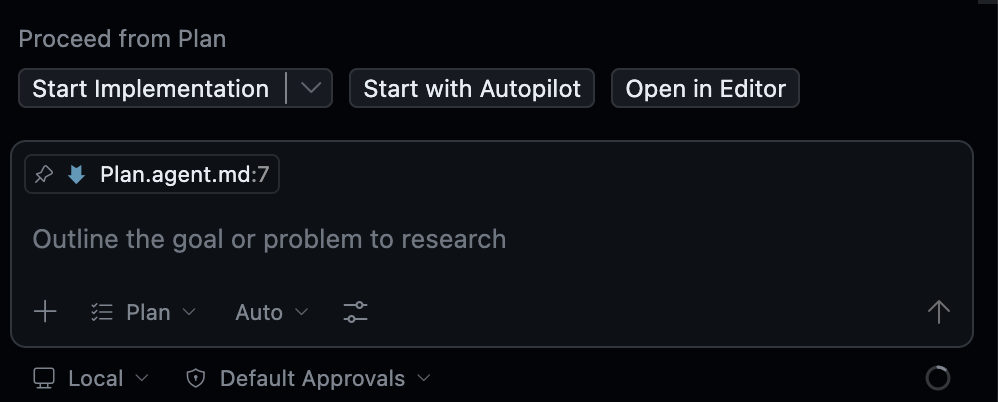
Once you're happy with the plan and your checkpoint is pushed, click "Start with Autopilot" to kick off the implementation.
⏱ About 15 minutes
Once the implementation is done, start the dev server to check it out:
npm run devFrom the port-forwarding notification, click "Open in browser" and try it out.
6.6 — File the improvements as Issues
Here's the key move — instead of asking Copilot Chat to "fix this right now", file each improvement as a GitHub Issue. In Step 11 (CODE: Cloud Agent) we'll have Cloud Agent implement some of them in parallel, in one batch, and in Step 13 (CODE: Copilot CLI) we'll knock out the remaining ones in parallel with /fleet.
Send the prompt below to Copilot Chat to file 8 Issues at once (the github-issues skill will structure them automatically):
Use the github-issues skill to create the following improvements as individual Issues in this repository. For Issues that specify a Type (e.g. Bug), set the GitHub Issue type accordingly (untyped ones are Features).

1. Title: Add a presentation mode with a category-grouped TOC sidebar and category background images on top of the current landing page
   Details: Keep the existing `/playbook` landing page and Markdown detail pages. Add a presentation mode entry point from each card (for example `?present=1`). In presentation mode, each `##` heading in the Markdown becomes a slide, with a generated title/cover slide from frontmatter. Add keyboard controls (`←` / `→` to move, `Esc` to return to `/playbook`) and keep a unique URL for the current entry and slide. Also show a fixed left sidebar (TOC) listing all Playbook entries grouped by category using `src/lib/playbook-categories.ts` (labels, colors, icons, and ordering from that file). Highlight the current entry; clicking another entry switches to it while staying in presentation mode, and the TOC scroll position should not jump when clicking. Slide text should use a large font size so it stays readable when projected on a screen. Additionally, give each presentation deck a category-specific background image using the supplied assets: `slide-bg-introduction.webp`, `slide-bg-plan.webp`, `slide-bg-develop.webp`, `slide-bg-review.webp`, `slide-bg-secure.webp`, `slide-bg-operate.webp`, and `slide-bg-administration.webp`. Add a dark overlay so text stays readable. The cover / hero slide can show more of the background; content slides should be more subdued.

2. Title: Add Octocat “In a nutshell” hero slides
   Details: For each entry, turn the first “In a nutshell” / “一言で” section into a hero slide. Use the category actor/avatar from `src/lib/playbook-categories.ts` (for example Mona for Introduction) and render the text as a retro speech bubble. If the entry does not have that section, fall back to frontmatter `summary`.

3. Title: Add a links slide at the end of each presentation deck
   Details: If the Playbook entry frontmatter has `links`, render them as a final slide grouped by `group`. Each group should have a small heading and clickable links. If an entry has no links, skip this slide.

4. Title: Render Mermaid diagrams inside presentation slides
   Details: If a slide contains a ` ```mermaid ` code block, render it as a Mermaid diagram instead of plain code. Make sure diagrams on slides after slide 1 render correctly when navigating between slides.
   Type: Bug

5. Title: Improve presentation slide layout and typography
   Details: Make slide content feel centered and intentional, not stuck in the top-left. Use the retro theme tokens, category colors, readable table/code styles, and balanced spacing. Tables and long code blocks should scroll inside the slide rather than overflowing the viewport.

6. Title: Add mobile fallback for presentation mode
   Details: On narrow screens, presentation mode should not break. Either disable presentation mode and fall back to the normal Markdown detail page, or provide a simple vertical slide list. Cards and detail pages should remain usable on mobile.

7. Title: Prototype 10 design options for the table-of-contents (TOC) sidebar in a single HTML file
   Details: Building on the existing retro JRPG theme (neon palette, pixel fonts, CRT glow, per `frontend.instructions.md`), create 10 design variations of the presentation-mode TOC sidebar. Put them all in one self-contained HTML file at `public/toc-prototypes.html` so they can be opened in a browser and compared side by side. Within each section (Plan, Develop, etc.) keep the accent color solid and uniform, and preserve the 2-digit number, icon, title, New badge, and current-item highlight.

8. Title: Fix the flash of the non-presentation page when switching entries in presentation mode
   Details: While in presentation mode, clicking another entry in the TOC sidebar briefly shows the normal Markdown detail page for an instant before presentation mode is re-applied. Keep presentation mode active across entry switches so the non-present content never flashes.
   Type: Bug
You can find the resulting Issues in the Issues tab of your repository. We'll have Cloud Agent / Copilot CLI implement them in the next sections.
⏱ About 3 minutes