In a nutshell
Start with a 30-day free trial (50 licenses). Complete SSO, SCIM, and team configuration during the trial, then switch to a paid plan.
Create an Enterprise (30-day trial)
First, create a GitHub Enterprise Cloud account. A 30-day free trial is available.
| Type | Link |
|---|---|
| Enterprise Managed Users (EMU) | Create an Enterprise |
| Personal accounts (non-EMU) | Create an Enterprise |
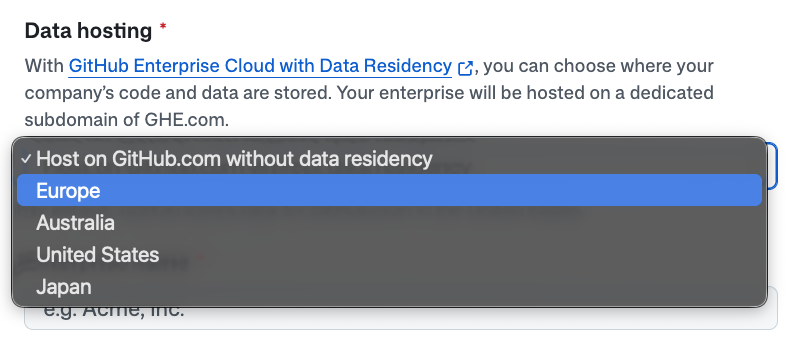
During creation, the Data hosting option lets you choose between GitHub Enterprise Cloud (github.com) or Data Residency (a dedicated regional subdomain on GHE.com).
EMU: Admin account initial setup
When you choose EMU, a dedicated admin account (shortname_admin) is automatically created.
- You receive an email to set your password — follow the link to configure it
- Log in with the admin account → the Overview tab shows the setup steps
- Follow the steps to configure SSO and provisioning
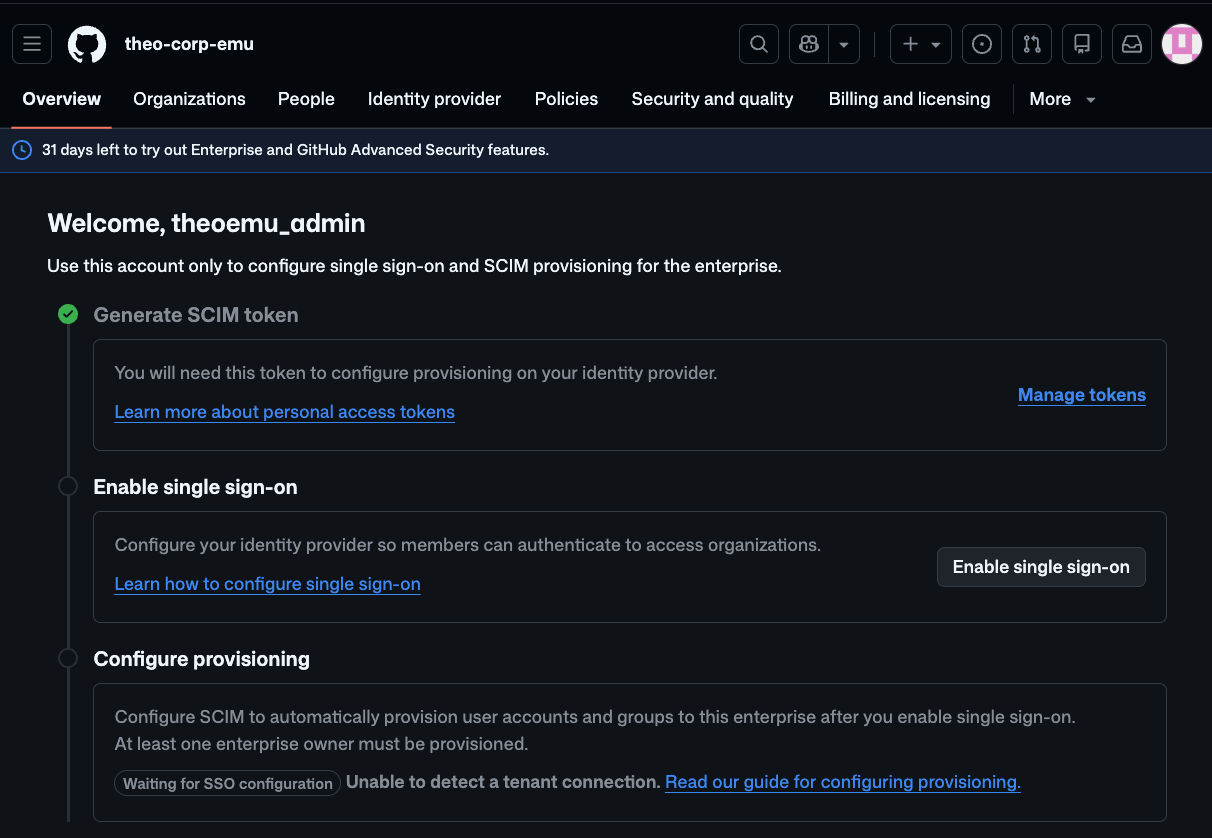
⚠️ This admin account is only for configuring SSO and SCIM provisioning. For day-to-day development, use user accounts provisioned through your IdP.
SSO method: OIDC vs SAML
When enabling SSO, you choose between OIDC or SAML.
Important: OIDC can only be configured on one Enterprise per IdP tenant. If you need multiple Enterprises on the same IdP tenant, additional ones must use SAML.
| OIDC | SAML | |
|---|---|---|
| Conditional Access Policy (CAP) | ✅ Real-time enforcement of IdP policies | ❌ No CAP support |
| Session revocation | ✅ Immediately revoked when IdP session ends | ⚠️ Token may persist until expiry |
| Enterprises per IdP tenant | ❌ Only 1 | ✅ Multiple |
| Supported IdPs | Entra ID (Azure AD) · Okta | Entra ID · Okta · PingFederate etc. |
| Recommended for | Primary Enterprise (strict security) | Additional Enterprises, or when CAP is not needed |
Register the app in Entra ID
To configure SSO, add an Enterprise Application in Entra ID.
| SSO method | Application to add | Tutorial |
|---|---|---|
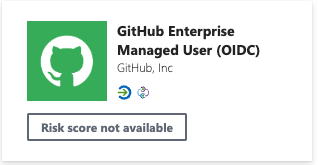
| OIDC | GitHub Enterprise Managed User (OIDC) | Setup guide |
| SAML | GitHub Enterprise Managed User | Setup guide |
SAML: GitHub ↔ Entra ID field mapping
In GitHub’s Identity provider settings, fill in the following. The Entra ID values can be found under Enterprise Application → Manage → Single sign-on.
| GitHub field | Entra ID value |
|---|---|
| Sign on URL | Login URL |
| Issuer | Microsoft Entra Identifier |
| Public certificate | Certificate (Base64) — paste the text content from the file |
SCIM Provisioning configuration
Once SSO is configured, set up Provisioning (automatic user sync).
In Entra ID under Enterprise Application → Manage → Provisioning, fill in:
- Tenant URL:
https://api.github.com/scim/v2/enterprises/<enterprise-slug> - Secret Token: A Personal Access Token (PAT) created with the GitHub setup user (
shortname_admin)
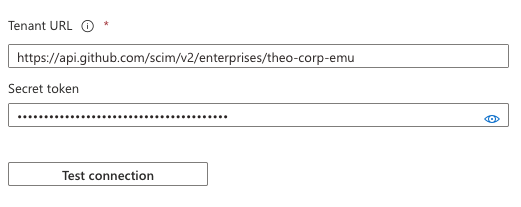
Create the PAT in GitHub under Settings → Developer settings → Personal access tokens with the
admin:enterprisescope.
Once configured, add security groups or users to the app under Users and groups. Entra ID automatically provisions them to GitHub Enterprise every ~40 minutes.
IdP Group and Team sync
By default, provisioned users are added as Unaffiliated — they belong to the Enterprise but are not assigned to any Organization or Team. You can automate team membership by syncing IdP groups (a security group in the case of Entra ID).
| Configuration | Result |
|---|---|
| Do nothing | Users are added to the Enterprise but not affiliated to any Org/Team |
| Link an IdP group to an Enterprise Team | IdP group members are automatically synced to the Enterprise Team |
| Link an IdP group to an Organization Team | IdP group members are automatically synced to the Org Team (and auto-join the Org) |
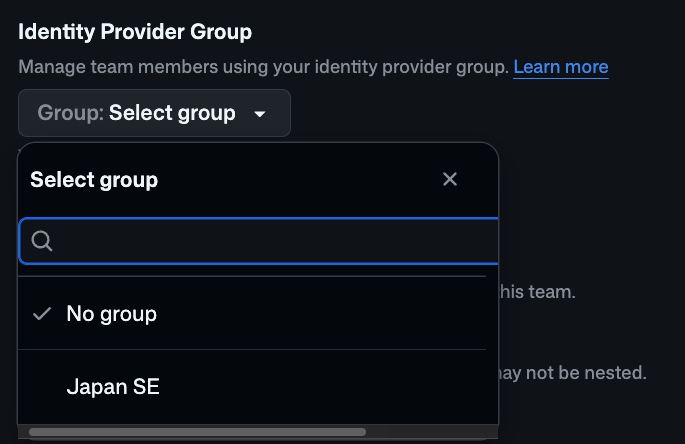
In GitHub, go to the Team settings → Identity Provider Group and select the corresponding IdP group.
For Entra ID: you can only connect a team to a security group. Microsoft 365 groups and nested (parent/child) groups or teams are not supported.